

Contribute to the Quantum Protocol Zoo!
Contributions from the community are incredibly valuable and ensure this resource is up to date and constantly improving. In this page we will explain how to add a new functionality, protocol, nodal subroutine or resource page, and how to edit an existing one.
Adding a new page
New pages are submitted through their respective forms. Completed forms will be automatically converted to pages at the end of the submission process. You will need to be logged in to access the forms. All submissions are checked by moderators before being published to ensure information on this site is accurate.
Once you begin filling out a form, you have to option to save your progress by saving the form as a draft with the Save draft button at the bottom of the form . You can access your drafted froms in the Draft section in your member area. Once you are happy with your new entry and have filled out all required fields, you can submit it for moderation with the Submit for moderation button at the bottom of the form. Once you have submitted a form for moderation, you will not be able to make further changes until has been processed by a moderator.
A moderator will now check your submission. If it is approved, the new page will be published and appear in its respective library for everyone to see. If there are some modifications that need to be made for the new page to be publishable, your submission will be returned to your drafts along side a message from the moderator. This will allow you to make the changes needed and resubmit for moderation. Either way, you will recieve a notification (and an email if you have opted in) regarding the moderator’s decision.
Submission forms
Filling out the form
The fields in the form are the same as the sections of the existing pages in that category. Some fields, such as the protocol name, outline, and assumptions in the protocol form, are mandatory as they are essential to properly understanding a protocol. Other fields such as the requirements and notation in the protocol form are not mandatory as they may not apply to all protocols. The more information you are able to provide the better. If you are submitting a new page it is likely you know a lot more than most people about that topic, and other readers will be grateful for all the information you are able to compile into one page. Please refer to the Structure page that goes into detail about the purpose and content of each field when filling out your form. You may also find it helpful to refer to some of the existing pages of the same category. Some good examples are:
References
References are important for ensuring the information you provide is correct and for providing additional resources to interested readers. For now, the reference system is manual. References are stored in a numbered list in the References field. When you want to insert a citation, add the reference information in IEEE style on a new row of the References form field. Then add the number of the reference in square brakets in the text you are referencing.
Math notation and equations
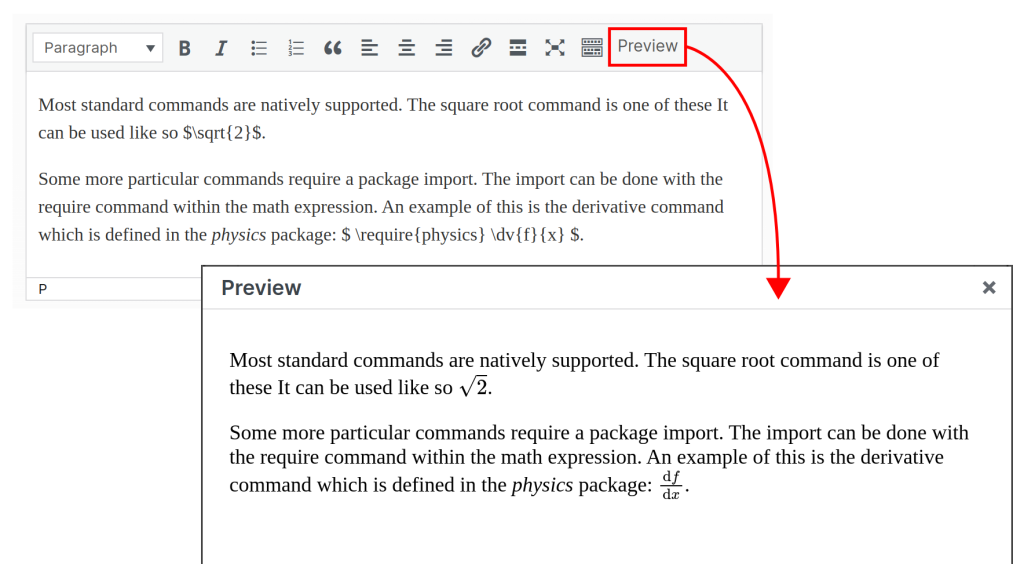
You will find that you want to insert math notation into some of the form fields. All field forms support the TeX markup language. To add inline math notation surround your TeX markup with single dollar signs. To add block (full-line) expressions surround the markup with double dollar signs. To check that the Tex markup is compiled as expected, you can preview it using the Preview button at the top right of the editor.
We use MathJax to compile the TeX markup, so we only support Plain Tex and some of the basic extensions (such as ams) that MathJax automatically loads. The list of all commands supported by MathJax can be found here. Next to each command on this list, if the name of the package is in bold (or there is no package), you will be able to use this command in the form without needing to load the package. If the package name is instead in italic, you can use this command by adding \require{package_name} in a math expression. Once you have loaded the package, you will be able to use any of its commands within the same field without needing to reload it. You will need to reload it in new fields.
If you need to go to a new line between dollar signs use Shift + Enter as Enter by itself will create a new paragraph within the editor which causes issues with the Tex compilation.
Editing a page
If you want to add new information or find a mistake within an existing page, you can edit it using the edit button on the right sidebar. This will open up the form used to create the page. Press the Create an edit draft button to create your own copy of the form. You will then find this copy in the Drafts section of your member area. From here you can modify and save the draft until you are ready to submit it for moderation. You will not be able to make further edits until a moderator has processed your submission. If your edits are approved, they will be merged into the existing page. If they are rejected, your draft will be returned to your drafts along with a message from the moderator, and you will be able to make further changes and resubmit for moderation, or delete the draft is you no longer deem it relevent or necessary.